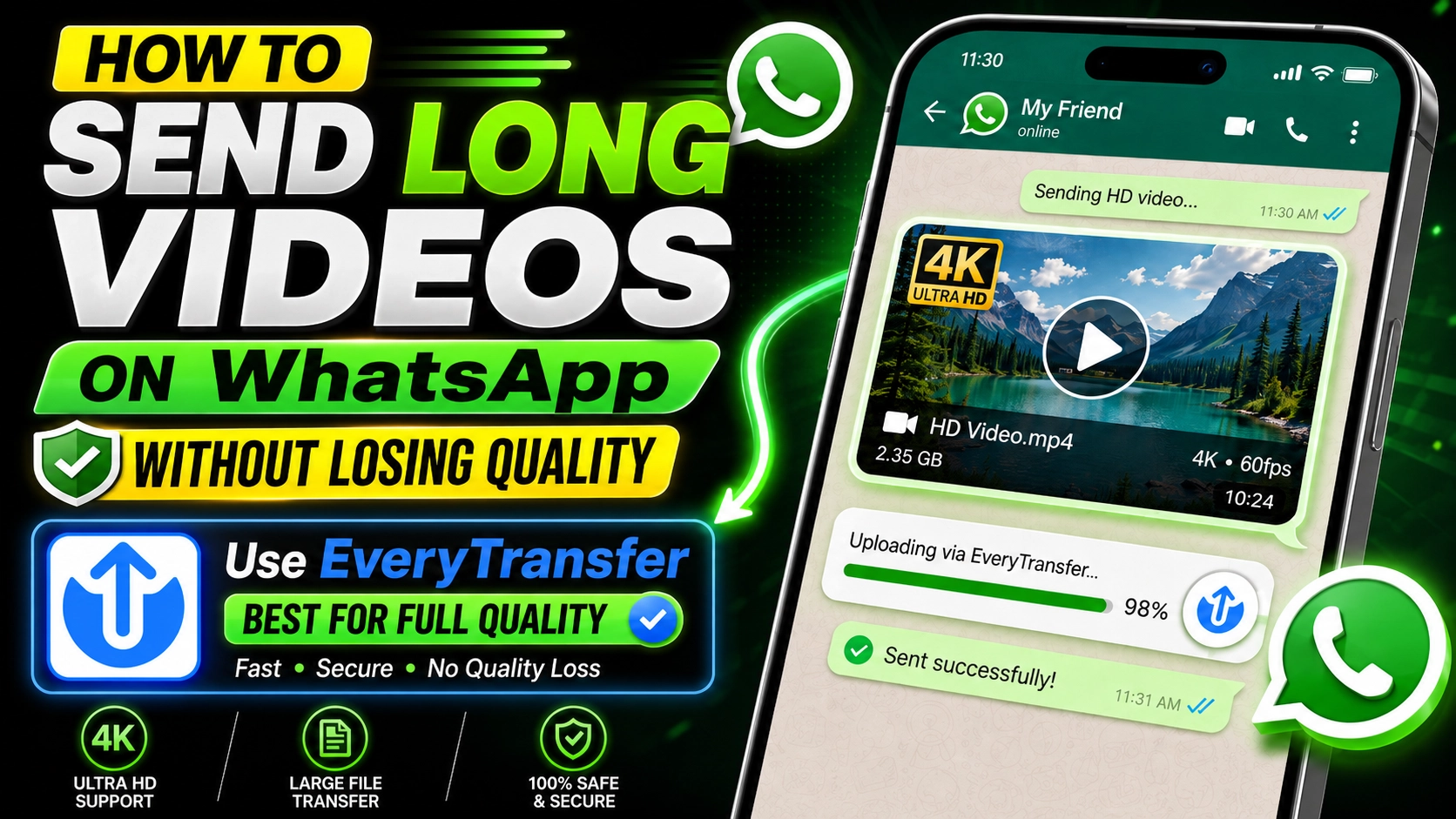
You filmed three minutes of the recital in crisp 4K, sent it to the family group chat, and what arrived looks like it was shot through a frosted window. WhatsApp did that. The app compresses videos heavily to keep delivery fast, and it caps file size — so longer or higher-quality videos either arrive degraded or refuse to send at all.
This guide explains why it happens, walks through every workaround worth knowing, and shows the one method that delivers full original quality on any phone, every time.
Why WhatsApp Ruins Your Video Quality
WhatsApp was built for instant messaging over any network, including slow mobile data. To guarantee fast delivery, it re-encodes every video you send through the regular photo and video picker. Here's what that re-encoding does:
- Resolution is downscaled — your 4K or 1080p footage typically arrives far smaller.
- Bitrate is slashed, producing blocky compression artifacts in motion and dark scenes.
- File size is capped, so long videos may need trimming or simply won't send.
- Audio is compressed too, which can muddy music and speech.
None of this is a bug. It's a deliberate trade-off that favors delivery speed over fidelity — great for memes, terrible for memories, client work, or anything you shot carefully.
Workaround 1: Send the Video as a Document
WhatsApp's document picker skips the re-encoding step. Instead of tapping the photo icon in the attachment menu, choose Document and browse to your video file. WhatsApp sends it as-is, untouched, at original quality.
Where the document trick falls short
- WhatsApp's file-size cap still applies, so long, high-resolution videos often won't go through.
- The video arrives as a file, not a playable preview — recipients must download it before they can watch.
- Locating the video through your phone's file browser can be fiddly, especially on iPhone.
- It fills the recipient's phone storage with a full-size file they may only watch once.
Workaround 2: Share a Cloud Storage Link
Uploading to a cloud drive and pasting the share link into the chat preserves quality and dodges the size cap. But cloud drives bring their own friction: links often default to restricted permissions, recipients are sometimes asked to sign in before downloading, the upload eats into your storage quota, and the link keeps working until you remember to remove it.
The Best Method: Upload to EveryTransfer, Share the Link in WhatsApp
The cleanest solution is a dedicated transfer link. Upload your video once to EveryTransfer and paste the link into any WhatsApp chat. There's no compression of any kind — the recipient gets the exact file you uploaded.
- Zero compression. Full resolution, original bitrate, untouched audio.
- Free for up to 1 GB per transfer, no account needed — and the recipient never needs one either.
- Works on any phone. The link opens in the browser; there's nothing to install.
- In-browser preview. Recipients can watch the video before deciding to download it.
- You stay in control with optional passwords, custom expiry dates, and download notifications.
Step by Step: Send a Long Video on WhatsApp with EveryTransfer
- Open everytransfer.com in your phone's browser — Safari, Chrome, anything works.
- Tap to add files and pick the video from your camera roll or gallery.
- Let the upload finish. Uploads are chunked and resumable, so a dropped mobile connection resumes instead of restarting.
- Optionally add a password or an expiry date for private videos.
- Copy the transfer link.
- Paste it into your WhatsApp chat and send. Your recipient taps the link, previews the video in their browser, and downloads it in full quality.
The whole process takes about as long as the upload itself, and it works identically on iPhone and Android — sender and recipient can be on different platforms. If your video lives on a computer rather than your phone, the same approach works on desktop; see our full guide to sending a large video online.
Tips for Sharing Videos at Full Quality
- Sending several clips? Add them all to one transfer — recipients browse them in a single in-browser gallery.
- For private footage, share the password through a different channel than the link itself.
- Set an expiry date so personal videos don't stay downloadable indefinitely.
- Sharing with a big group? Turn on download notifications to see who actually grabbed the file.
"WhatsApp carries the conversation. A transfer link carries the pixels."
Frequently Asked Questions
Why are my WhatsApp videos blurry?
Because WhatsApp re-encodes every video sent through the photo picker, lowering resolution and bitrate to speed up delivery. The degradation happens at send time, so the recipient can never recover the original quality. To avoid it, send the file as a document or — better — share a transfer link instead.
What is the video size limit on WhatsApp?
WhatsApp caps the size of files you can share, and the exact ceiling has changed over time and can vary by platform. In practice, long or high-resolution videos regularly exceed it. A transfer link sidesteps the cap entirely, because only a short URL travels through WhatsApp.
How do I send a 10-minute video on WhatsApp without losing quality?
Upload it to EveryTransfer and paste the link into the chat. Ten minutes of phone footage is usually far too large for WhatsApp to deliver at original quality, but a link carries no size penalty: transfers up to 1 GB are free with no account, and the recipient just taps to watch or download.
Does the recipient need an app or account to open my link?
No. EveryTransfer links open in any mobile or desktop browser, recipients never need an account, and the video can be previewed right in the browser before downloading. There is nothing to install on either side. A free account is free forever if you want to keep track of your transfers.
WhatsApp is the fastest way to reach almost anyone — it's just not built to move large video files. Send the link instead of the video, and every frame arrives exactly as you shot it.
Send full-quality videos free with EveryTransfer