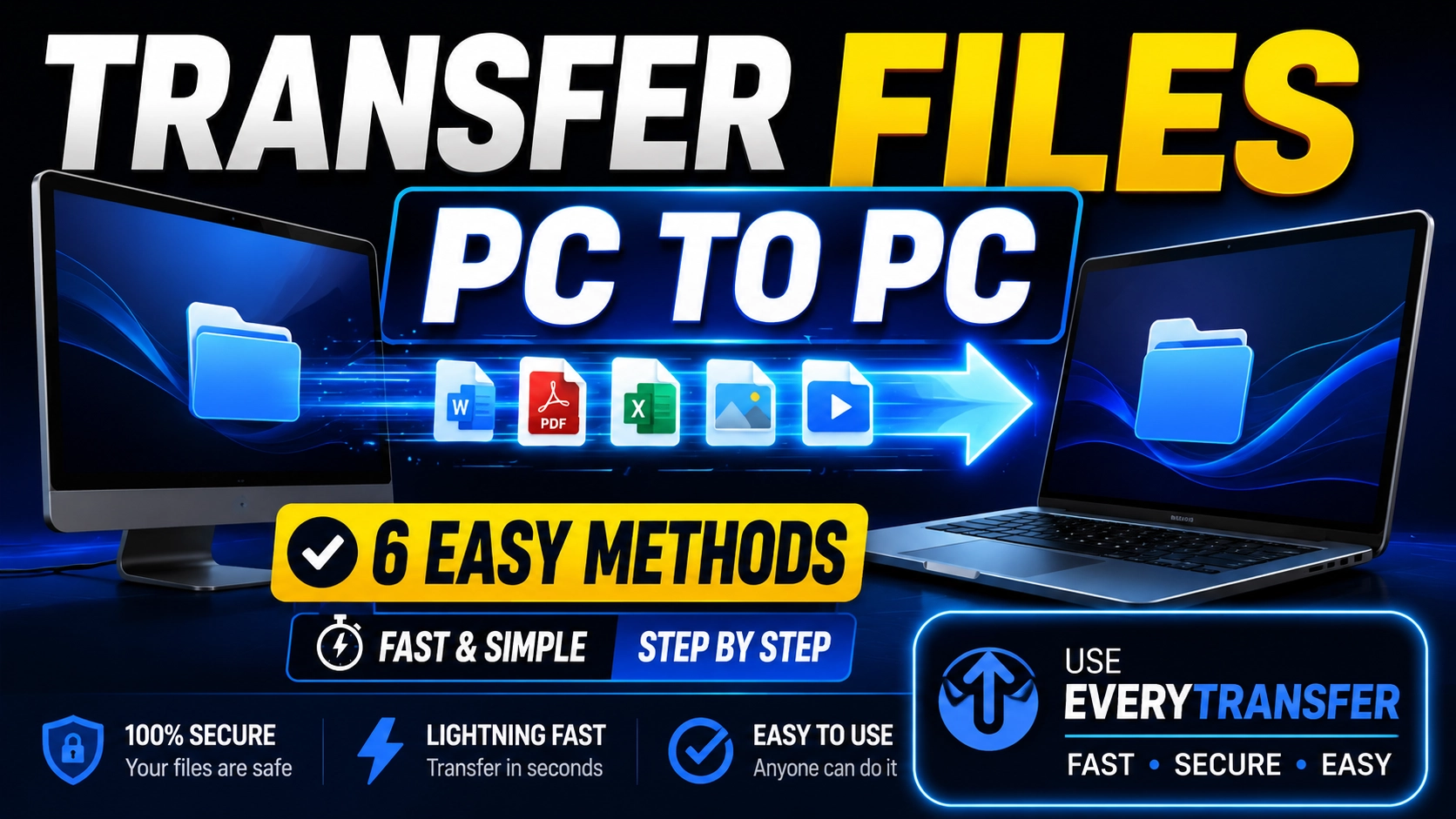
New laptop, old desktop, a coworker across the office — or across the country. Moving files between two computers should be simple, yet it's easy to lose an afternoon to USB shuffling, half-configured network shares, or cloud syncs that crawl. Here are six methods that actually work, what each one is genuinely good at, and how to pick the right one in five seconds.
Method 1: USB Flash Drive
The old reliable. Copy the files onto the stick on PC 1, walk it over, and copy them off on PC 2. No network, no accounts, no internet required — which is exactly why it still earns a place in every drawer. The downsides: speed varies wildly between drives (cheap sticks are painfully slow), it's a manual two-step copy, and the drive itself is easy to lose, usually with your files sitting on it unencrypted.
Send your files now, free
Up to 1 GB per transfer, no account needed. Share a link or email it.
Method 2: External SSD
For serious volume — photo libraries, video projects, full-disk backups — an external SSD is the heavy lifter. Modern USB-C SSDs sustain hundreds of megabytes per second, so even hundreds of gigabytes move in minutes rather than hours. It's the best tool for migrating to a new PC in one sweep. The catch is cost, and the same physical limitation as a flash drive: both machines have to be within walking distance.
Method 3: Local Network Sharing
Windows includes Nearby Sharing for quick device-to-device sends between nearby Windows PCs — switch it on in Settings on both machines and share straight from File Explorer. For repeated transfers, traditional shared folders over the same network do the job. It's fast and free once configured, but both machines must be on the same network, setup can be finicky across OS versions, and it doesn't help at all when the other PC is in another city.
Method 4: Cloud Drives
Dropbox, Google Drive, OneDrive: install the app, drop files into the synced folder, and wait for the upload on one side and the download on the other. Cloud drives shine for files you want to keep continuously in sync across machines. They're less ideal for one-off moves: you wait for two transfers instead of one, free quotas are modest, and a big migration can push you into a subscription. Curious what storage really costs at scale? See our breakdown of how much 1 TB of storage is.
Method 5: Direct Cable Transfer
A USB data-transfer cable or an Ethernet cable run between two PCs, paired with migration software, creates a fast, private, point-to-point link. PC manufacturers and Windows migration tools support this route for moving an entire user profile. It's quick once it's running, but it requires the right cable, compatible software on both ends, and the machines sitting side by side.
Method 6: Browser-Based Transfer Links
The newest method is also the lowest-friction: upload the files in a browser on PC 1, open a link on PC 2, download. That's the entire setup. It works across different networks, operating systems, cities, and continents; neither machine needs software installed; and with EveryTransfer, neither person needs an account for transfers up to 1 GB.
How to Transfer Files from PC to PC with EveryTransfer
- On the source PC, open everytransfer.com in any browser.
- Drag and drop your files — up to 1 GB per transfer, free, no account required.
- On a paid plan, optionally set a password, an expiry date, or a download limit if the files are sensitive.
- Copy the transfer link, or have EveryTransfer email it for you.
- On the destination PC, open the link and download. Files can even be previewed in the browser first.
Uploads are chunked and resumable, so a dropped Wi-Fi connection picks up where it left off instead of restarting, and on paid plans download notifications confirm the moment the files are picked up on the other end. For recurring or team workflows, paid plans add password protection, encryption at rest, custom branding, and more receive-files requests — with a 14-day money-back guarantee.
Which Method Is Best for You?
- USB flash drive: same room, small-to-medium data, no internet needed.
- External SSD: huge libraries and full PC migrations — fastest for hundreds of gigabytes.
- Local network sharing: repeated transfers between PCs on the same network.
- Cloud drive: files you want continuously synced, not just moved once.
- Direct cable: one-time full-machine migration with both PCs side by side.
- Transfer link: different locations or networks, mixed operating systems, zero setup — or whenever you just want it done right now.
"The best transfer method is the one with the least setup between you and 'done'."
Frequently Asked Questions
What is the fastest way to transfer files between two PCs?
For very large amounts of data with both machines in the same place, an external SSD or a direct cable is fastest — local hardware beats any internet connection. For computers in different locations, a browser-based transfer link is fastest in practice, because there's nothing to configure: upload on one PC, download on the other.
How do I transfer files between two computers without a USB drive?
Use a transfer link: open everytransfer.com on the first computer, upload the files, then open the link on the second computer and download them. It's free for up to 1 GB per transfer, needs no account or installation, and works even when the PCs are on completely different networks.
Can I transfer files from PC to PC over the internet for free?
Yes. EveryTransfer is free for transfers up to 1 GB with no account required, and most cloud drives include a modest free storage tier as well. For one-off moves, a transfer link is usually quicker, since there's no app to install and no quota to manage — and a free EveryTransfer account stays free forever.
What about transferring files between a PC and a Mac?
Browser-based links are the easiest cross-platform route, because both machines only need a browser — no network shares, no platform-specific sharing features, no drivers. A USB drive also works well if it's formatted as exFAT, which both Windows and macOS can read and write.
Every method here has a moment where it's the right answer. Keep a USB stick in the drawer, an SSD for the big migrations — and a transfer link for everything else. If you're weighing up services for that last category, our roundup of the best WeTransfer alternatives compares the field.
Transfer files PC to PC free with EveryTransfer