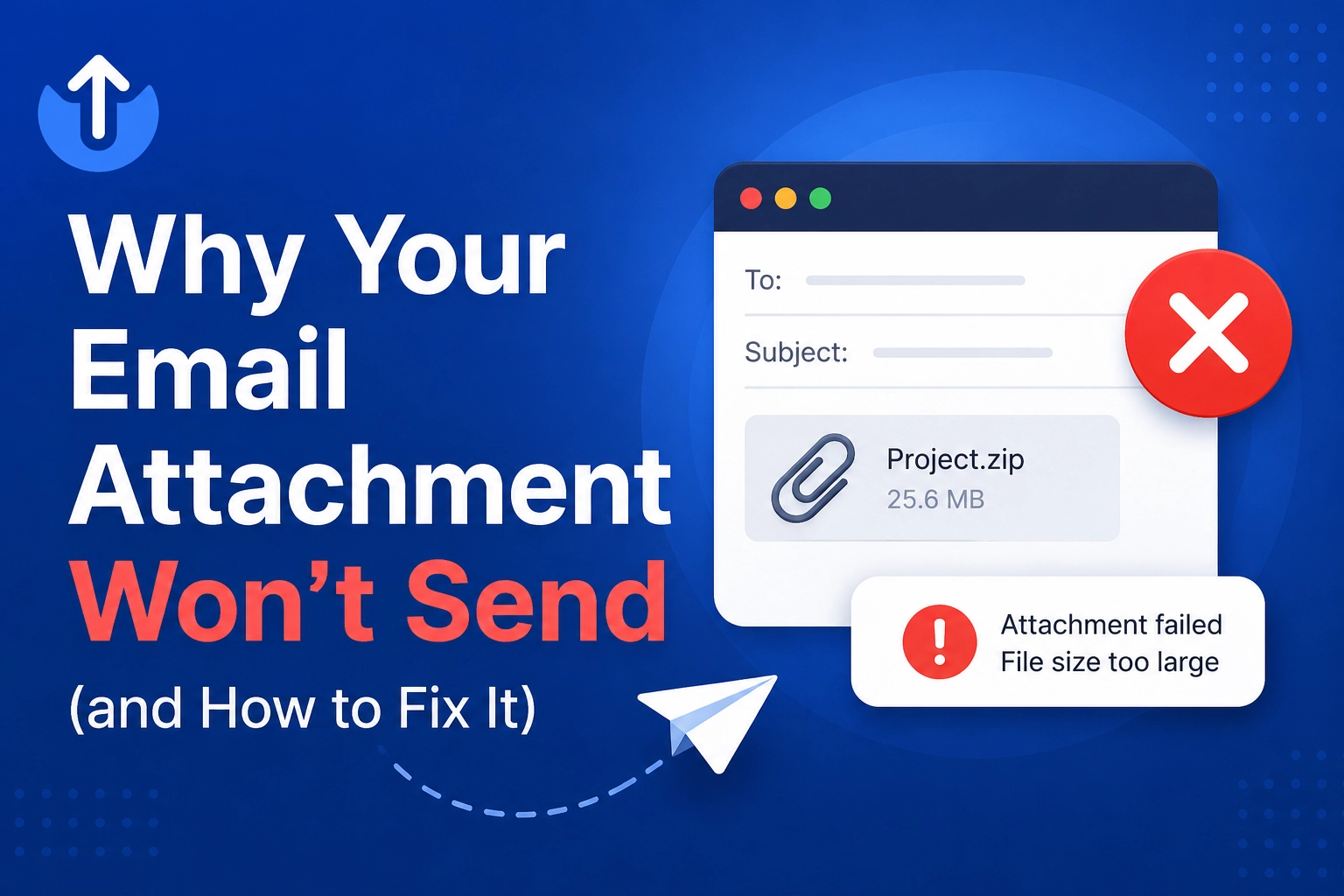
If your email attachment won't send, the cause is almost always the size cap — Gmail and Yahoo limit attachments to 25 MB and Outlook to 20 MB — or a blocked file type such as .exe. The quickest fixes are to compress the file below the cap, rename or rewrap a blocked file type, or skip the attachment entirely and send a download link through a file transfer service.
Email was standardized in the early 1980s for short text messages; attachments were bolted on later, and the limits show. Below are the six causes that account for nearly every failed attachment, how to diagnose which one you are hitting, and the fix for each.
Send your files now, free
Up to 1 GB per transfer, no account needed. Share a link or email it.
What Are the 6 Reasons an Email Attachment Fails?
1. The file is over the provider's size cap
This is the cause in the overwhelming majority of cases. The standard limits: Gmail 25 MB, Yahoo Mail 25 MB, Outlook.com 20 MB, iCloud Mail 20 MB (Apple's Mail Drop can hand off up to 5 GB via a link). Corporate mail servers are often stricter — 10 MB caps are common. Crucially, the limit applies to the encoded message, not the file on disk, which brings us to cause five. Fix: compress the file, or use a transfer link for anything that won't comfortably fit — our guide to sending large files via Gmail walks through every option.
2. The file type is blocked
Mail providers block executable and script files outright for security — Gmail rejects .exe, .bat, .js, .msi, .vbs and dozens more, and it also rejects a .zip that contains any blocked file type inside it, even renamed ones, and password-protected archives it cannot scan. Outlook maintains a similar blocklist. Fix: don't try to outsmart the scanner by renaming extensions (it usually fails and looks suspicious). Send executables and installers through a file transfer link instead, where the recipient downloads them deliberately over HTTPS.
3. The recipient's mailbox is full
If the message leaves your outbox but bounces back with an error like "mailbox full" or "quota exceeded," the problem is on the other end. Free Gmail accounts share 15 GB across Mail, Drive, and Photos; once that fills, incoming attachments bounce. Fix: there is nothing you can do to their mailbox — send a download link instead, which adds only a few hundred bytes to the email no matter how large the files are.
4. A corporate filter or firewall ate it
Business mail gateways quarantine attachments far more aggressively than consumer providers: smaller size caps, wider blocklists (often including all ZIPs and macro-enabled Office files like .docm and .xlsm), and content scanners that silently strip files without notifying either party. If the recipient gets your message but no attachment, this is the likely culprit. Fix: ask the recipient to check their quarantine digest, or bypass the gateway entirely with a password-protected transfer link — most corporate filters allow plain HTTPS links.
5. Encoding overhead pushed it over the limit
This is the failure that confuses everyone: a 19 MB file fails against a 25 MB limit. The reason is that email cannot carry raw binary data, so attachments are converted to Base64 text, which inflates them by roughly 33–37% in transit. A 19 MB file becomes about 26 MB of encoded message — over Gmail's cap. As a rule of thumb, the largest file you can actually attach is about 70–75% of the stated limit: roughly 18 MB on Gmail and 14–15 MB on Outlook. Fix: keep attachments under those effective ceilings, or use a link and skip encoding overhead entirely.
6. Your connection dropped mid-upload
If the progress bar stalls or the message sits in the outbox forever, the upload itself is failing — common on weak Wi-Fi, VPNs, or mobile hotspots. Email uploads are not resumable: a drop at 90% starts you back at zero. Fix: move closer to the router or plug in, try again, and for repeat offenders use a transfer service with chunked, resumable uploads that pick up where they left off after a drop.
When Should You Switch from Attachments to a Transfer Link?
Attachments are fine for small documents going to one person. Switch to a download link when any of these is true:
- The file is over ~15 MB — you are in encoding-overhead territory on every provider.
- The file type is executable, scripted, or zipped — filters will fight you.
- You are sending to multiple recipients — one upload, one link, instead of a copy in every inbox.
- The content is sensitive — links can carry a password, expiry date, and download limit; attachments cannot. See EveryTransfer's security features.
- You need proof of delivery — download notifications tell you the moment the file is retrieved.
"A transfer link turns a 2 GB problem into a 100-byte email. The message always sends, the filter never blocks it, and the recipient's mailbox quota is irrelevant."
How Do You Send the File with EveryTransfer Instead?
- Open everytransfer.com — no account is needed to send up to 1 GB per transfer.
- Add your files (any type — installers and ZIPs included) and enter the recipient's email, or choose to copy a link.
- On a paid plan, optionally set a password, custom expiry date, or download limit before sending.
- Send. Your recipient gets a simple download page — no account, no app, and previews for common file types.
- On a paid plan, get notified when the file is downloaded. Need higher limits or branding? Compare plans — free accounts are free forever.
Frequently Asked Questions
Why does Gmail say my 19 MB attachment is too large?
Because the 25 MB limit applies after Base64 encoding, which inflates attachments by about a third. Your 19 MB file is roughly 26 MB once encoded, so Gmail rejects it. In practice, treat Gmail's real attachment ceiling as about 18 MB of file on disk.
Why can't I email a ZIP file?
Providers scan inside ZIP archives, and they reject the whole archive if it contains a blocked type (such as an .exe), if it is password-protected so it cannot be scanned, or if it is nested too deeply. Corporate gateways frequently block all ZIPs on principle. The reliable workaround is a file transfer link, which carries any file type.
How do I email a video that's over 25 MB?
You don't attach it — even one minute of phone video usually exceeds 25 MB, and re-compressing it visibly degrades quality. Upload the video to a transfer service and email the link instead; the recipient streams a preview or downloads the original at full quality. Gmail will also offer a Google Drive link automatically, which works if you have free Drive storage available.
Does the recipient need an account to download from a link?
With EveryTransfer, never — recipients just click the link and download, with no sign-up, on any device. That removes the most common friction of cloud-drive sharing, where permission errors ("request access") routinely derail deliveries.
When an attachment refuses to send, check size first (remember the ~33% encoding penalty), then file type, then the recipient's side. But the durable fix is to stop forcing large or blocked files through a 1980s pipe: upload once, send a link, and let the email carry only the message. EveryTransfer does exactly that — free, with no account needed to send.
Send files free with EveryTransfer